Showing posts with label Workshops. Show all posts

Monday, 15 December 2014

Digital Print Workshop - Working with colours for commercial print

☞ For this workshop, we focused on Photoshop colour layouts.

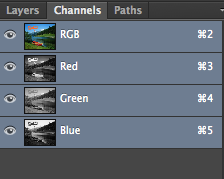
Proof colors : The normal color mode for commercial prints is CMYK, but the default color mode on Photoshop is RGB, you can work in this mode but see the result in CYMK by choosing this color mode in Image>Mode>CYMK Color :


Then you can see the 2 color modes are shown on the tab :


You can preview the CMYK colours by selecting View>Proof Colors (⌘Y)

Gamut warning : by activating this tool, you have a look on areas which can't be printed (so they are indicated by the gray color areas).


In order to decrease the grey areas, you need to modify the adjustments like the levels, the saturation for example. You can use also the magic wand to select affected areas and change only adjustments on these parts.


Swatches : it's the same thing as swatches on Illustrator. You reset the pallet colour and create a new one by selecting colours on the image. Then you can save your pallet and reuse for finding it again or for another project.


Spot colours/Duotones/Channels : sometimes it's cheaper to use spot colour inks than the whole CMYK inks. You can access in the Pantone library in the colour picker pallet. In the duotone option, you can choose the number of spot colour and their intensity thanks to the curve. 


Channel colours separate the different layers of the image. Choose the Gray mode and create a New Spot Channel. Then you can apply a spot colour in the image thanks to the black brush or erase this colors with the white brush.


Friday, 21 November 2014

Digital Print Workshop

We've got a workshop about how to mange colours in commercial printed.

There're 3 way on commercial print : Offset Lithography, digital printing and screen printing (not really used).

Main colours modes : CMYK (subtractive colour) and RGB (additive colour). For the CMYK one, we need to think of colour as ink (printing process).


When you choose a brighter tint of one of global colours, you can see the percentage.

Spot color

Process colours
A process colour is printed using a combinaison of the four process inks : CMYK. By default, Illustrator creates new swatches as process colours.

Global Swatches
A global colour is automatically updated thoughout your artwork when you edit it. All spot colours are global ; however, process colours can be either global or local. You can identify global colour swatches by the global colour icon (when the panel is in list view) or a triangle in the lower corner (when the panel is in thumbnail view).

Spot colours
A spot colour is an ink that is used instead of, or in addition to, CMYK process inks. You can identify spot colour swatches by the spot colour icon (when the panel is in list view) or a dot in the lower corner (when the panel is in thumbnail view).